Media Management
Each topic map has its own media management. Asset management is integrated to help you convert all media content into the correct format. For you this means: Simply upload the original data, choose the format and the system does the rest for you.
Open Media Management
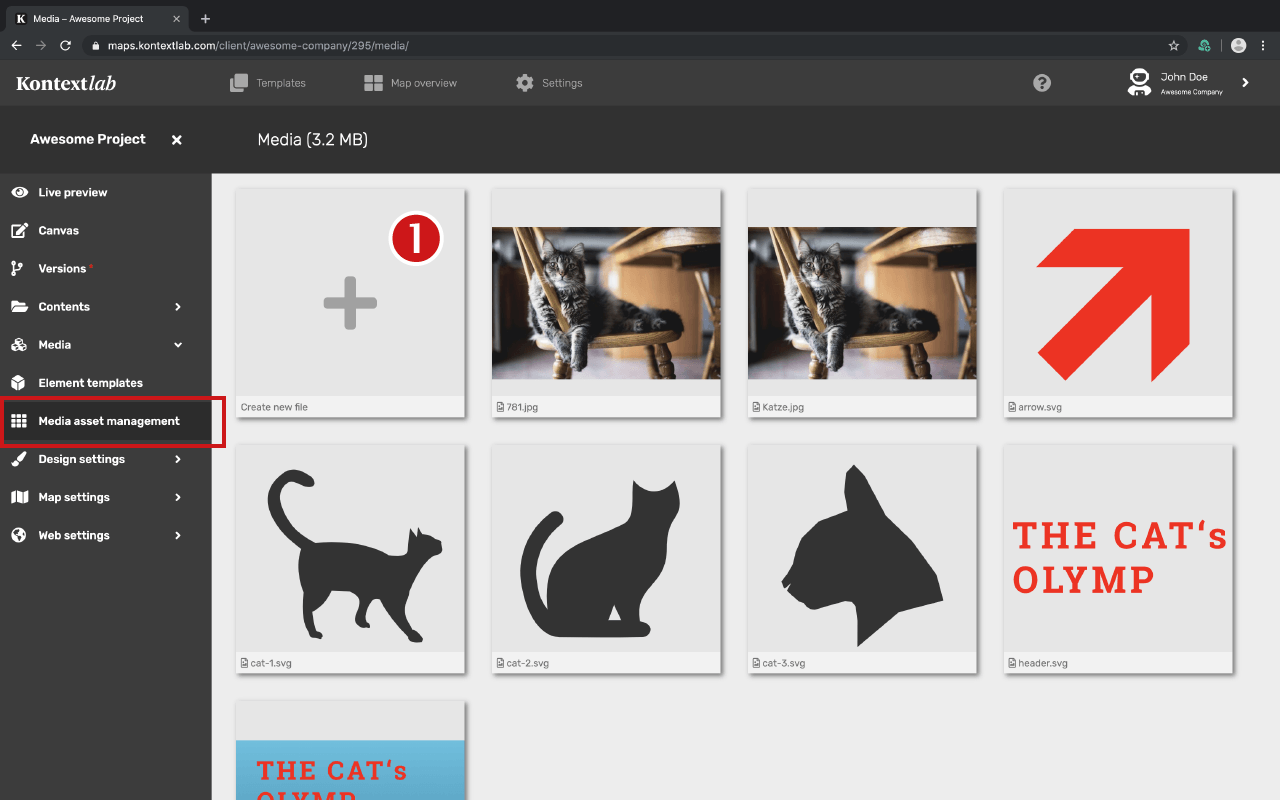
To upload new media, click on the + [1] icon. This will open the Digital Media Asset Management tool, which can be used to upload a new file.
Media Upload and Asset Management
Media management is simple thanks to the integrated Multimedia Advanced Digital Asset Management (MADAM). With MADAM you can not only manage all media and their metadata (e.g. copyrights, license information, subtitles, if applicable). Files are automatically converted for optimal playback quality and stored in versions. MADAM organizes everything for you. This means you only have to upload original files, link them to the map and MADAM does the rest.
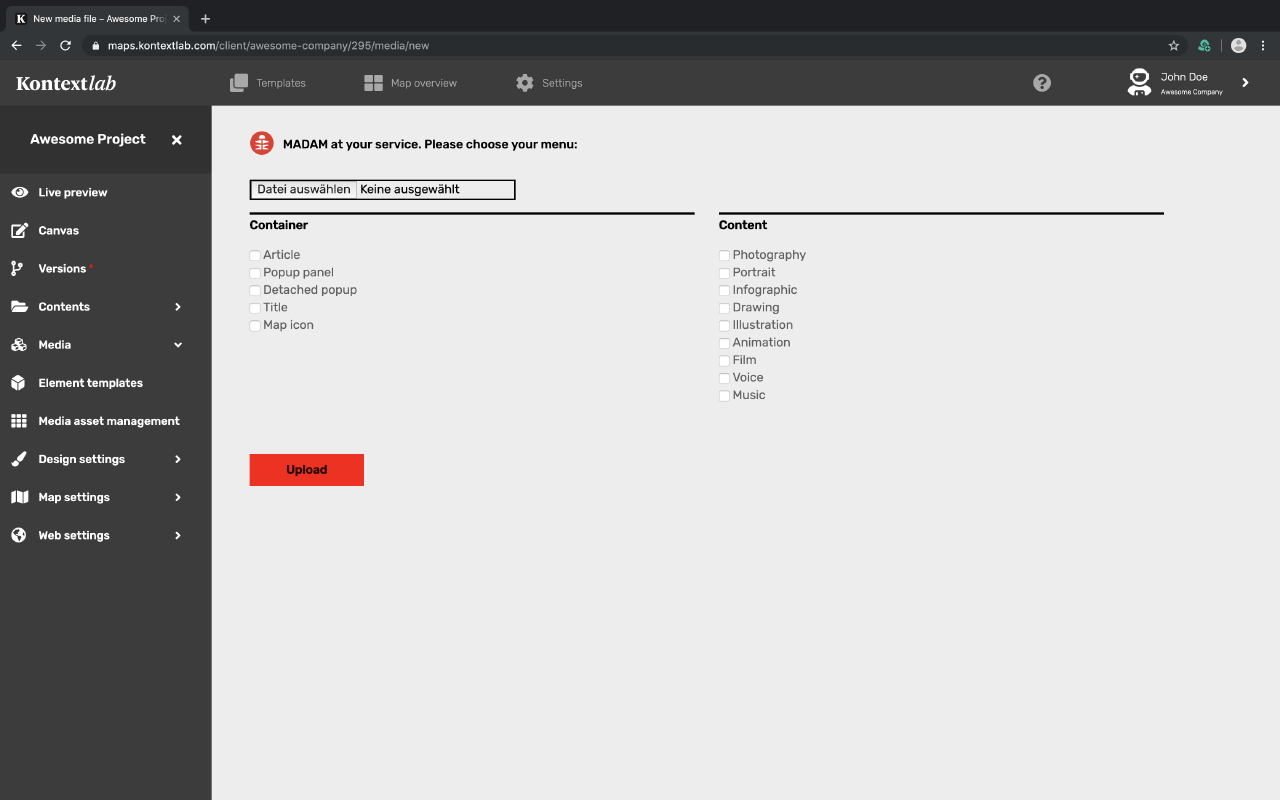
Help MADAM with a few clicks to create the correct file versions:
Container
Here you can define the area where the media file will be published (multiple choice possible). MADAM saves versions of your original file, for the containers you have selected.
Content
Help MADAM's conversion algorithm to better understand the content of the file. Thus, it can convert the file size with the best quality.
Working Process of MADAM
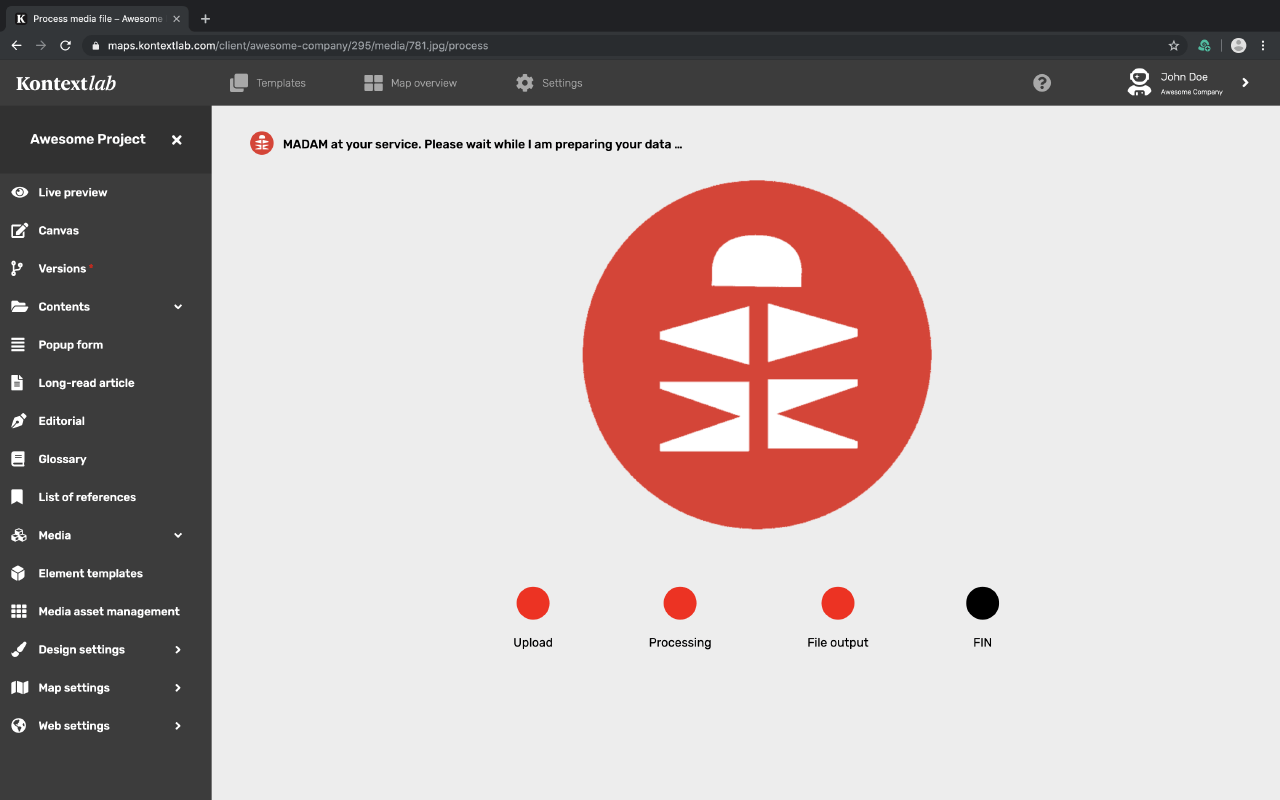
As soon as you press the button "Upload", MADAM starts to work. A small animation shows you the progress of the processing.
Note: For large files (e.g. video files), the work icon may not appear or a time-out error may be displayed. This is only a server feedback regarding the long uploading time, but has no influence on the actual process. The media files are displayed by a reload/refresh of the media management.
Embed Media
After the upload, the file appears in the media management overview page. If you move the cursor over the preview image, two small icons will appear in the upper left corner, with which you can either copy the image URL or delete the image.
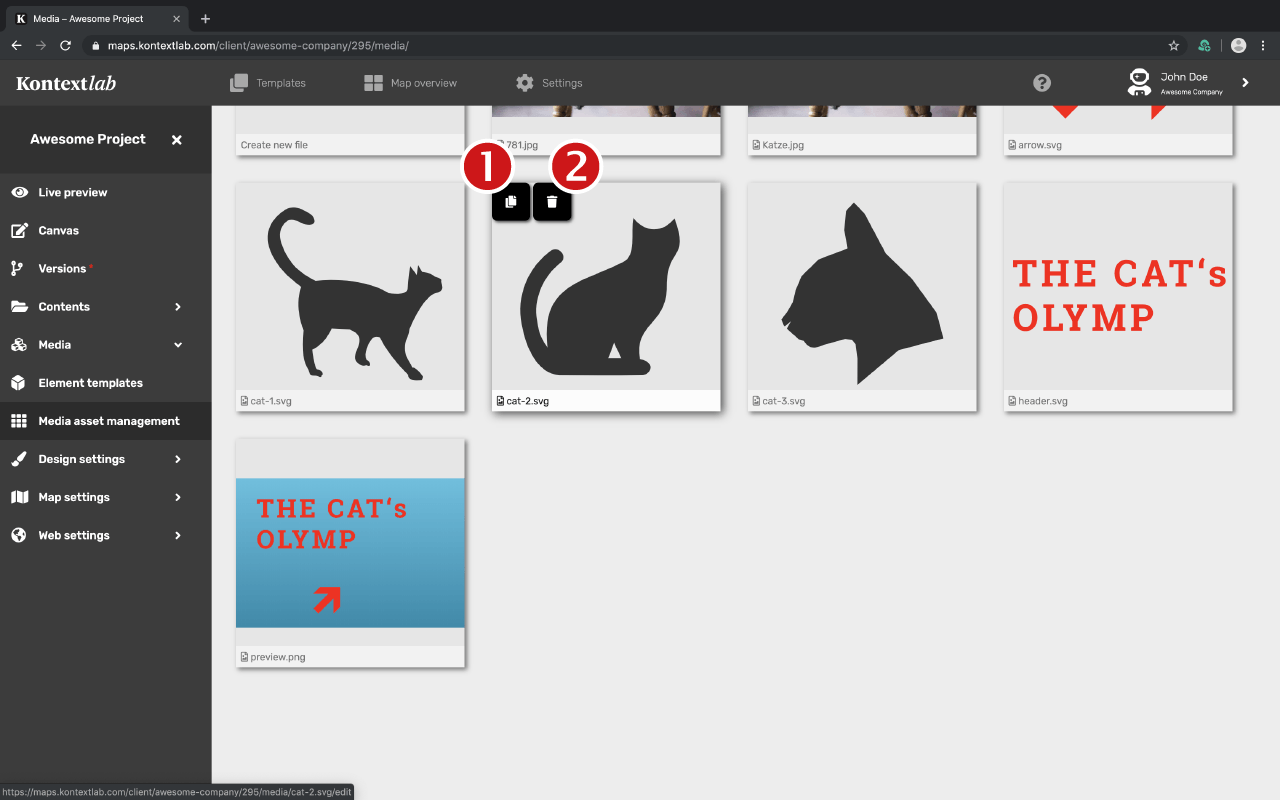
[1] If you click on the icon, the URL will be cached. Now you can simply insert it at the desired location.
[2] Click on the recycle bin and the file will be deleted.
Change Images
If you want to replace a file with a newer version, give the new version the same name and upload it. This will automatically replace the old file with the new one.
Note: If the replaced image is not immediately displayed in the Media Manager, reload the browser view.
Manage Meta Data
When you click on a file in the Media Manager, its Metadata Manager opens. If available, all metadata will be extracted and included in the upload. In the metadata form you can add information accordingly.
In addition to the metadata, you can adjust the file defaults here. This means: If you want to publish a file in another type of container, you only need to tick another box and click on "Change". MADAM will then create an additional version.
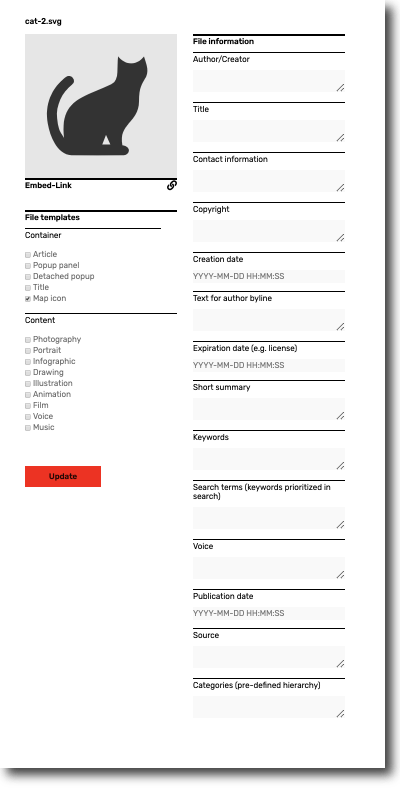
Pro-Tip: In Order to make media files searchable, the fields "Short summary, title and keywords" can be provided with texts.