Glossary
If you would like to add a glossary to your content, this form is a very simple way to do so. For each glossary term, fill in the appropriate form fields, save them and add as many terms with descriptions as you like.
Your readers will discover the glossary terms in two places:
-
In the table of contents under the heading "Glossary". All terms are listed alphabetically and can be opened by clicking on a word.
-
As a tooltip popup within all your texts. All glossary terms in your texts are automatically linked to the descriptions. Your readers can tell by the dotted underline of the word that there is a description behind it.
Both options are automatically generated when the form is filled out.
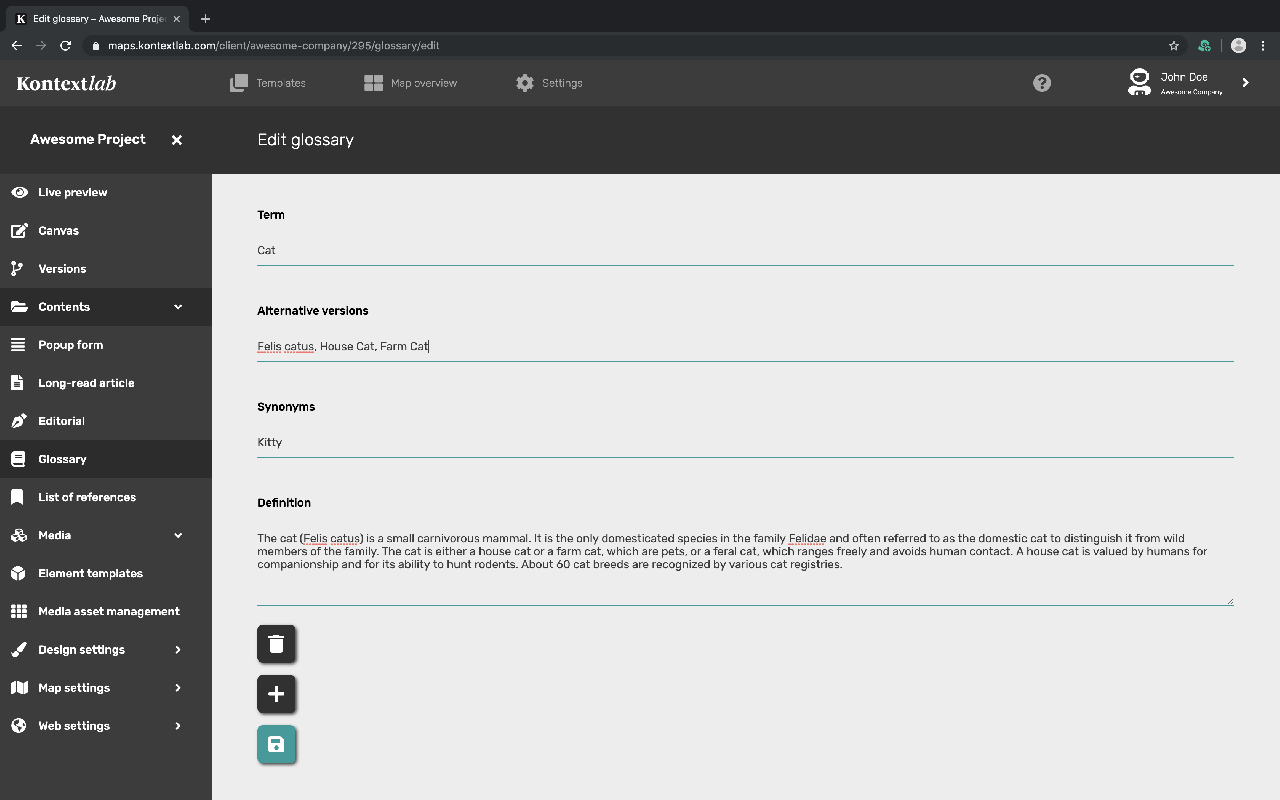
Fill in the form according to your requirements. For new descriptions click on the button "New term".
Important: Pay attention to upper and lower case for all terms. If several variants are possible, use the form field "Alternative Versions" and separate the terms with a semicolon.
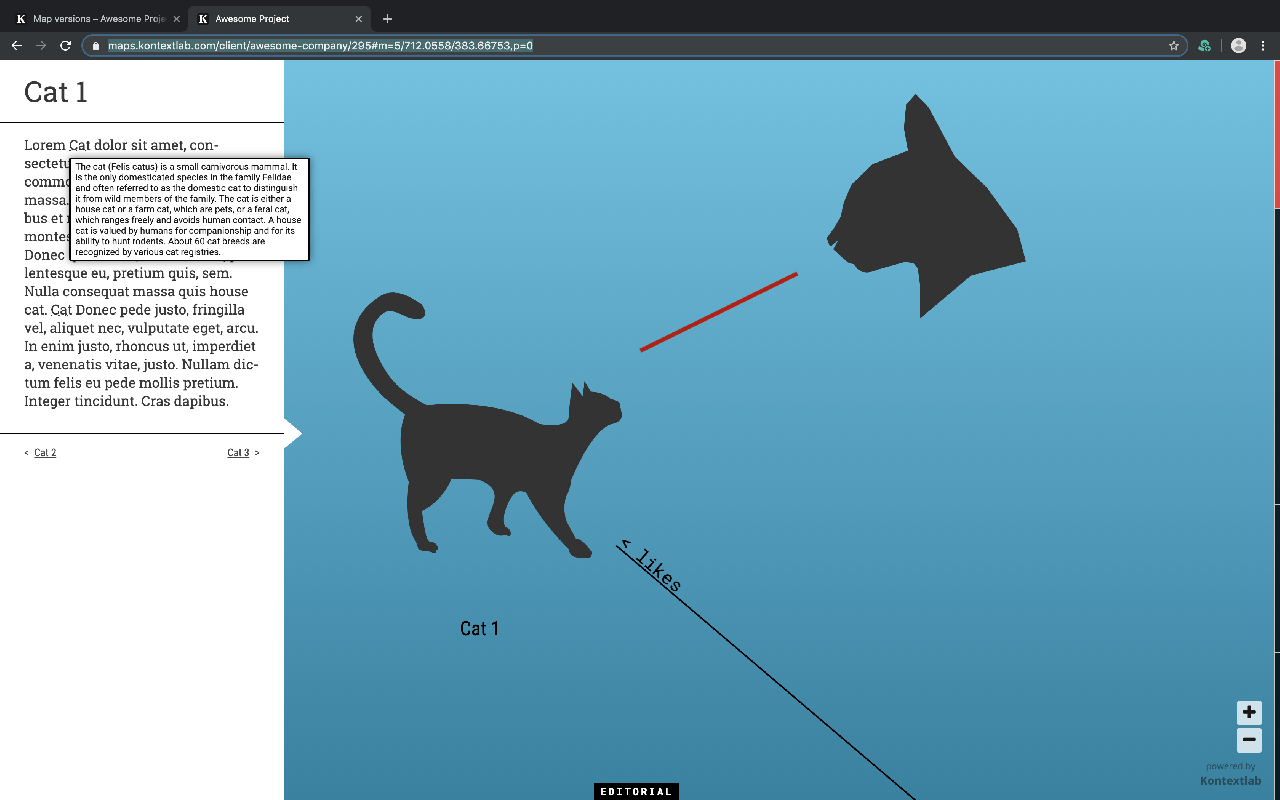
All terms are automatically linked in all texts with a tooltip popup. If the user clicks on the term, the short description opens.
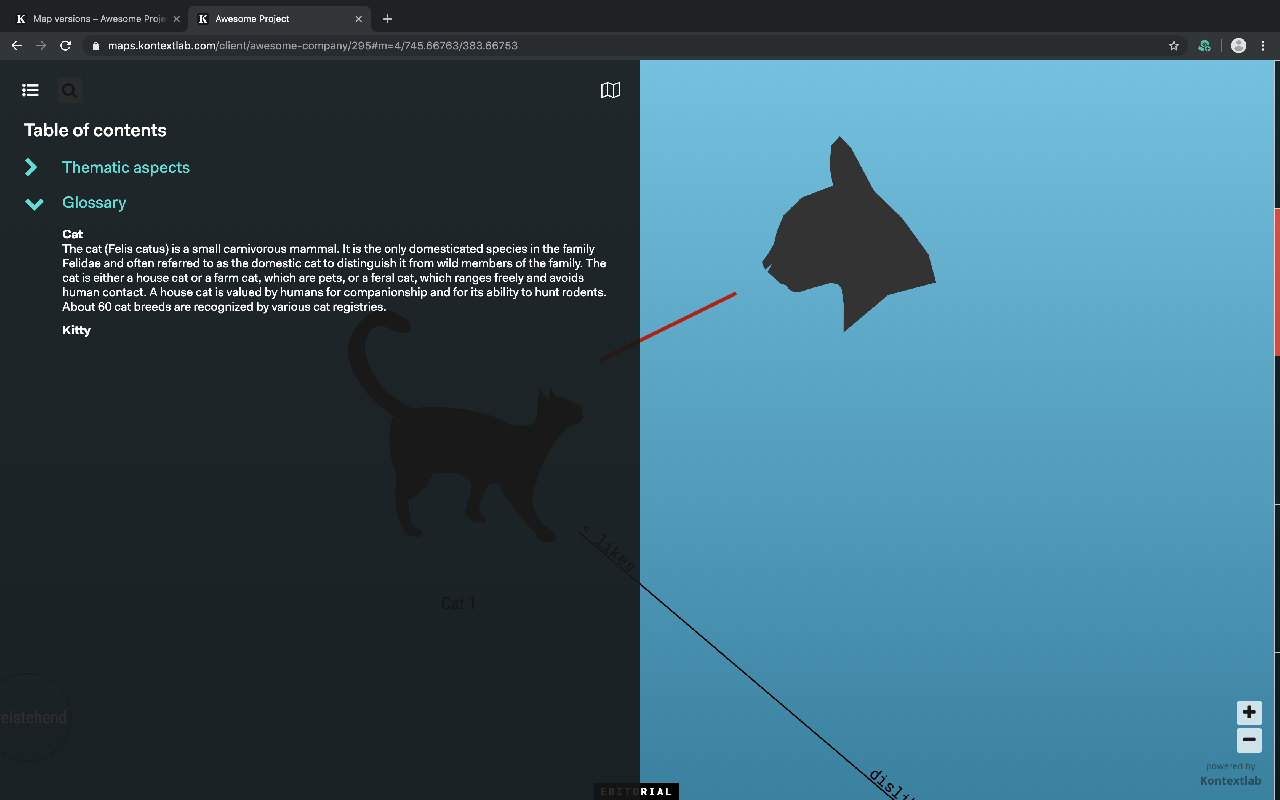
When a glossary is created, a category with all terms is automatically generated in the table of contents of the map.
Tip: Do not use terms that are too common in your map, otherwise the Glossary Tooltip will appear everywhere these terms appear.