Editing View
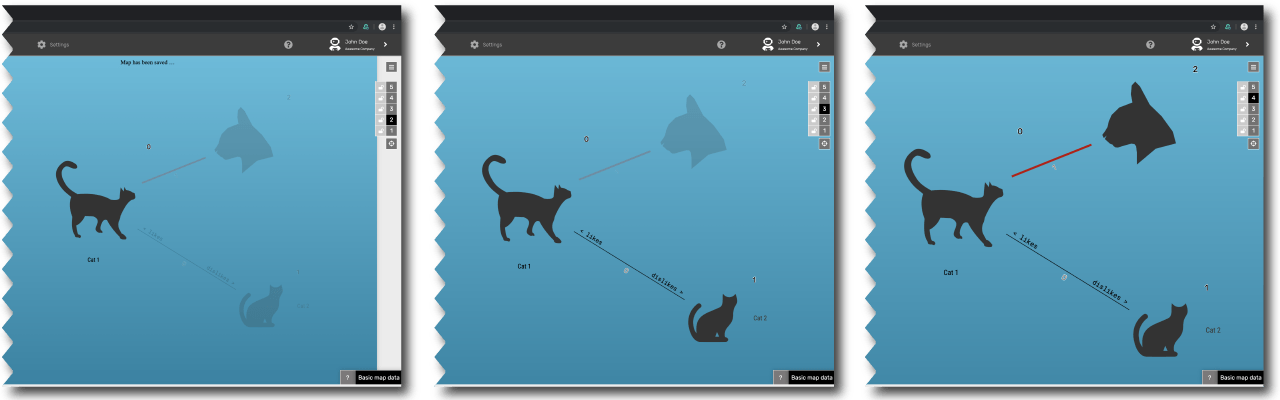
In the Canvas Editor you can see the number of layers you have set on the right. All levels in this bar can be clicked. This allows you to check the placement and visibility of the elements directly in the Canvas Editor at any time.
So that you can plan optimally, all elements of your map are always visible there. The transparency of the dots tells you whether this element is visible in the currently selected layer or not. So if dots or lines that are not visible on the current layer in the live map, they will appear slightly transparent in the Canvas Editor.
Lock Layers
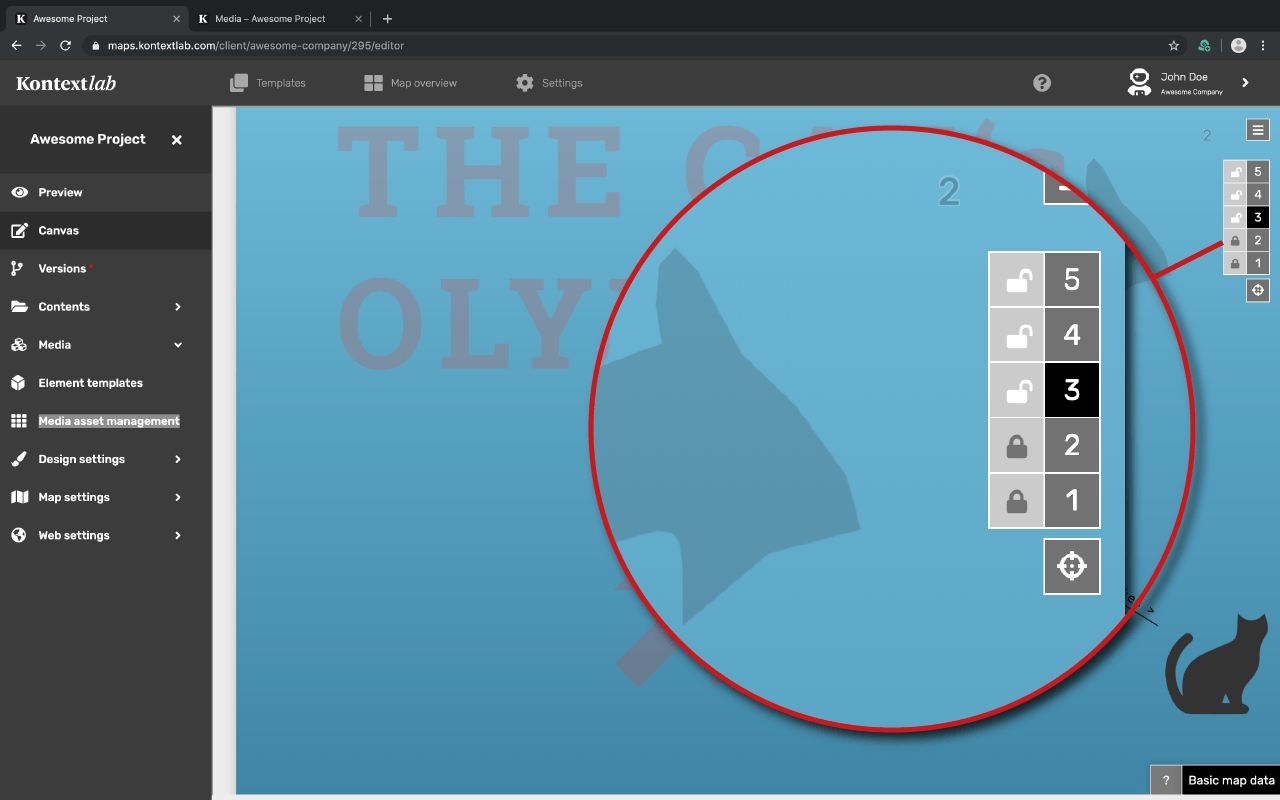
You want to shift one point and there's always another one shifting above it? To prevent this from happening, you can lock the layers on which the elements are not to be moved.
Next to each layer there is a lock icon that allows you to lock that layer. This function only applies to editing in the Canvas Editor.
Layer View
Since all elements are always visible in the Canvas Editor, you can organize the map well, but because of larger elements, for example, you do not have a clear view of all the dots that will appear behind them. The layer view is the perfect solution for this.
Fade out whole layers or single dots and you have a free view.
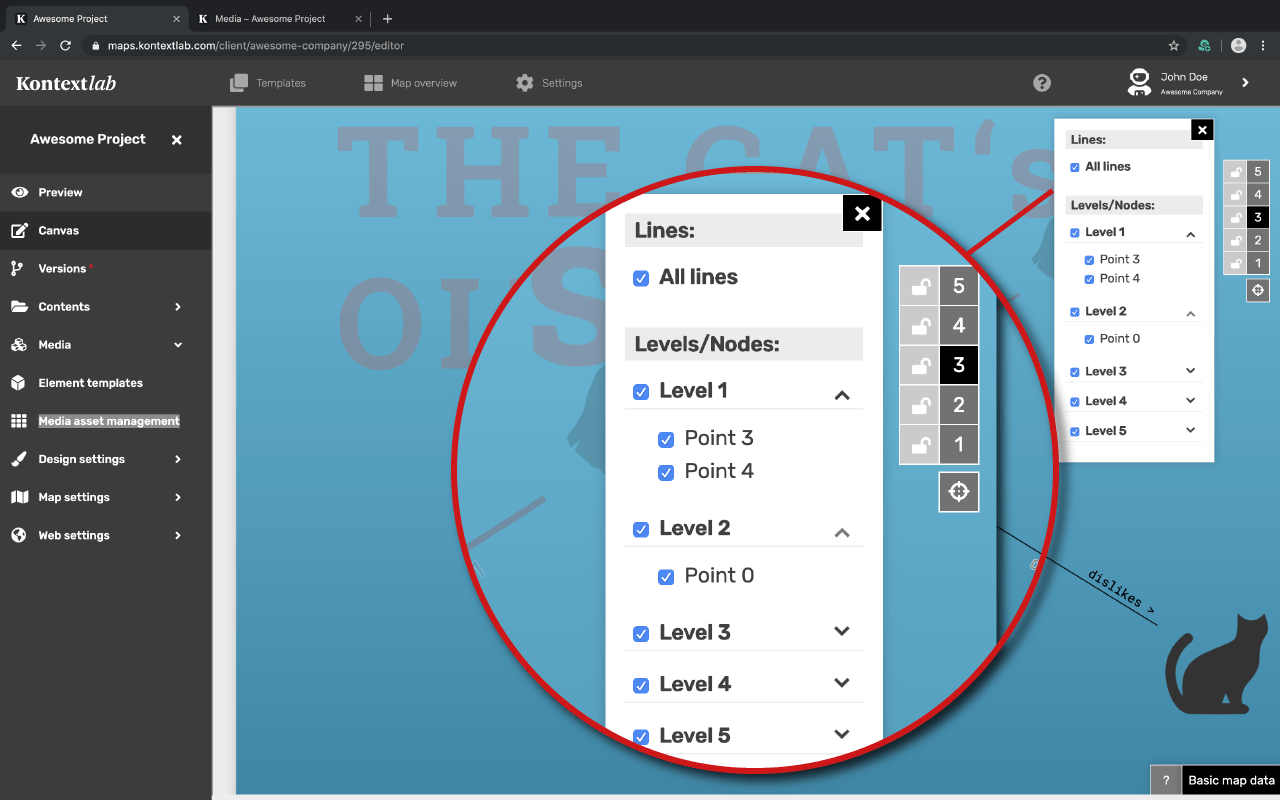
Note: Showing or hiding layers refers only to the Editor view and has no effect on the Live view.